

Send a letter through HealthLink
Send a letter securely to another practice, then check that it arrived.
Last updated
Audience: Doctor, Admin
Send the letter
- Open the letter and click Send.
- In the HealthLink box, type at least 2 letters of the doctor's name or their provider number in Search Provider Name or Number.
- Click the right doctor in the list.
- Admins: choose the doctor this letter is from in Send on behalf of.
- Urgent? Switch on Mark urgent. It flags the letter in the recipient's inbox.
- Click Send.
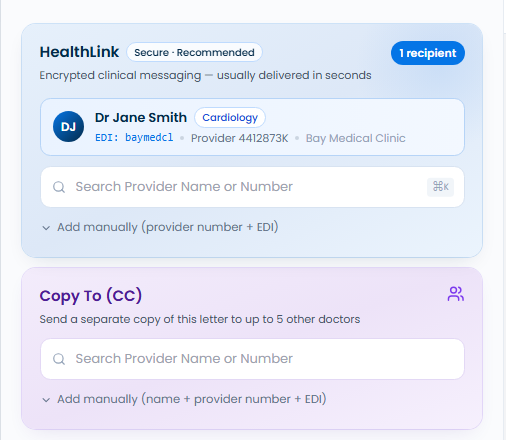
Doctor not in the list?
Click Add manually (provider number + EDI) and type their name, provider number and HealthLink address (EDI). Ask their practice for these.
Send a copy to other doctors (Copy To)
After you pick one main recipient, use Copy To (CC) to send a separate copy to up to 5 more doctors. Each one needs a provider number.
Not on HealthLink? Use Email (fallback) at the bottom of the screen instead.
Check that it arrived
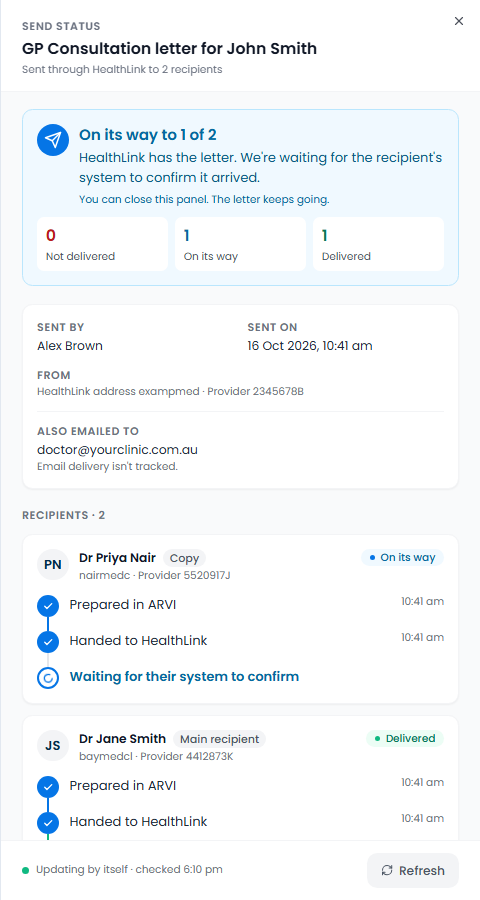
On the Letters page, click the ⋮ menu on the letter, then View Send Status. You can also click View delivery in the message you see right after sending.
Each recipient has three steps:
- Prepared in Arvi
- Handed to HealthLink
- Received by their system
On its way means HealthLink has the letter and is waiting for the other practice's system to confirm. You can close the panel; the letter keeps going.
If a letter is not delivered
The panel says what happened and what to do, in plain words. Usually: check the recipient's details and send again. If it keeps failing, contact Arvi support.
Sent the wrong thing?
Use Re-Send on the letter and switch on This is an Amended / Corrected version. The recipient sees that it replaces the earlier letter.